
GUARANTEED TO WORK. FREE SHIPPING. LIFETIME WARRANTY.
Search by the model number
(Ex: Dell Inspiron 530m)
Find your system info and get recommended upgrades
Choose from the list for the Manufacturer and Model number
here's how it works

find What's right for you
Smart Part-Finder/Memory-Scanner tools all from the safety of your own home

Get Fast,
Free Shipping
Directly to you or your IT Dept. *On domestic USA only. Other exclusion apply.

we'll show you how to install it
Our "Guarantee to Work" means you are covered from "Add to Cart" to Installation.


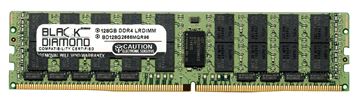
128GB (1X128GB) DDR4 2666 RDIMM ECC Registered Memory 288-pin (4Rx4)
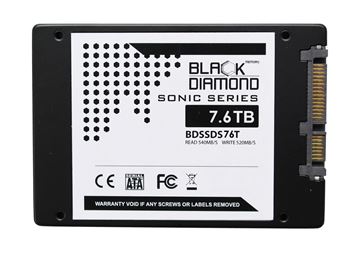
7.6TB Sonic Series SSD SATA III 2.5 inch W/R:540/520MB 7 years warranty
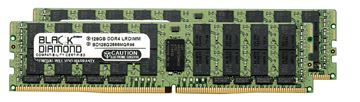
256GB Kit (2X128GB) DDR4 2666 RDIMM ECC Registered Memory 288-pin (4Rx4)
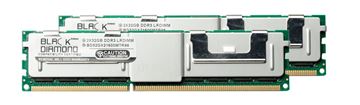
64GB Kit (2x32GB) (4Rx4) LRDIMM DDR3 1600 (PC3-12800) ECC Registered Memory 240-pin
"Excellent and honest company. I even had to deal with their customer support since UPS did not deliver to the right office, and they were quick to overnight new memory (at their cost) when the package did not turn up. I will certainly be back, and recommend others to do so."
Reviewed By Charles
"Easy to order memory. It arrived quickly & was brand that I ordered. Installed it & it worked great. Would definitely order memory from them again - great price & service."
Reviewed By Dennis
"The memory I ordered worked perfectly, and Black Diamond had the best price I found--very happy customer."
Reviewed By Steve N
"Fasta service and excellent product, my computer works faster now. I will use this products in further upgrades."
Reviewed By Jackie O
"Good product, fast shipping. Will recommend anyone."
Reviewed By Robert K
"Reliable/Trustworthy company, I am very happy with the ram I have bought and will be buying more ."
Reviewed By Tom M
"I have bought several products from this company and all have shipped quickly and worked great. Awesome customer service also. Thanks!"
Reviewed By Evan O
"I placed an order for memory for a Dell Computer on Friday and received it Monday noon.The timely delivery was very pleasing considering it shipped from California to Ohio."
Reviewed By Mike P
"I've ordered twice from them, I encountered great service and quick shipping both times. They handled an issue that came up flawlessly, and therefore I must recommend them."
Reviewed By Dob B
"I purchased the Diamond 1GB 2-SoDIMM DDR for my Inspiron 8500. Shipping was fast, memory is better than what came with my Dell (CL2 vs CL2.5). You can't beat the price/quality. Highly recommend!"
Reviewed By Red D
Sit back and let me tell you a tail, a tail of a guy that was angry with his slow laptop! It was just after my birthday, 2017. I remember it like it was yesterday. President Trump was moping the floor with the progressive socialists even this far before the Nov. 3rd election. I opened my laptop screen and pressed the power button, it took 3 min to load windows 7 pro ( upgraded from windows 10 home ) on my Dell Inspiron 5767. After some very vulgar, pre obama, sailor talk, I made the decision, RIGHT THEN AND THERE, NO MORE SPINNERS FOR ME! I logged on to a couple of forums, asked some of my system admin friends what enterprise Solid State drives they used. 7 out of 9 said, without a doubt Black Diamond. Best value, best performance, easy set up, great safety and security. 22 March 2017, I ordered my first 512Gb SSD from black diamond memory, well it was OK Memory but still. FFW 4 days, there it was in the mail box. Like a kid with a new toy I rushed to the house. Ripped open the packaging, and there it was, my very 1st SSD. I loaded Partition Magic on my SLOW-AS-BA!!$ laptop. Dug around in my SATA adapters from broken external hard drives I was given to find an SATA USB adapter that would work with this new drive. FOUND ONE!!!. It was a toshiba 128 Gb that had been dropped. My lucky DAY!!!!. Fired up Partition Magic, opened the migrate to ssd/hdd and voila, there it was. A perfect copy of my entire system. Very exciting. Next was to set the BIOS to accept the new SSD. Not a difficult task, just took some minor tinkering. Disassembled my laptop, as I have done many, many times for cleaning and what not. Removed the old spinner and replaced it with a brand new Black Diamond SSD. While I had the case open, I cleaned the fan, cleaned the exhaust of the CPU cooler, replaced the heat sink compound on the CPU. I highly recommend Quik silver heat sink compound, makes intel processors work better. Reassembled my system, plugged everything back in booted it up into the BIOS, just to make sure this drive was showing up properly, IT WAS!!!!. 1st system boot was 3.28 seconds!!!!!!!!!!!!! I was so happy. It was kinda like having a whole brand new machine. Total time to replace the drive, including migrating the system to the new SSD and cleaning out the case, 3 Hrs 18 Min. I have been using this drive ever since. Every day I do something on my laptop. I have been very pleased with the performance of this drive. I had some reservations about downgrading to winblows 10 because of the stupid " end of life " crap from macroslut. I gave in and did the downgrade 3 years ago. Everything is great. This old system just keep chugging along. Very impressed with how fast I can render videos from my gopro and motorola phones. So impressed, I just purchased a 1Tb Black Diamond SSD, to replace the 512 Gb that is now over 5 years old, Still Kicking a$$ to BTW
Reviewed By I wanted a faster laptop
I am very disappointed with this product. Out of the two memory sticks I received, only one is working properly. The other one is completely defective, which makes the purchase unreliable and unusable as intended. I also tried to contact customer support to resolve the issue, but their response has been extremely slow and unhelpful. It is very frustrating to deal with both a faulty product and a lack of proper support. Overall, I cannot recommend this product based on my experience.
Reviewed By Defective, unreliable, unresponsive